OBS Stinger Transitions: Setup, Transition Point & Track Matte
The 2-minute setup, the one number that matters (the transition point), and every fix you'll need.
- OBS Studio
- Streamlabs
TL;DR
- In Scene Transitions, click + and choose Stinger, then pick the .webm.
- Set the transition point to the moment the animation fully covers the screen.
- Use the 30 FPS file if your stream outputs 30 FPS.
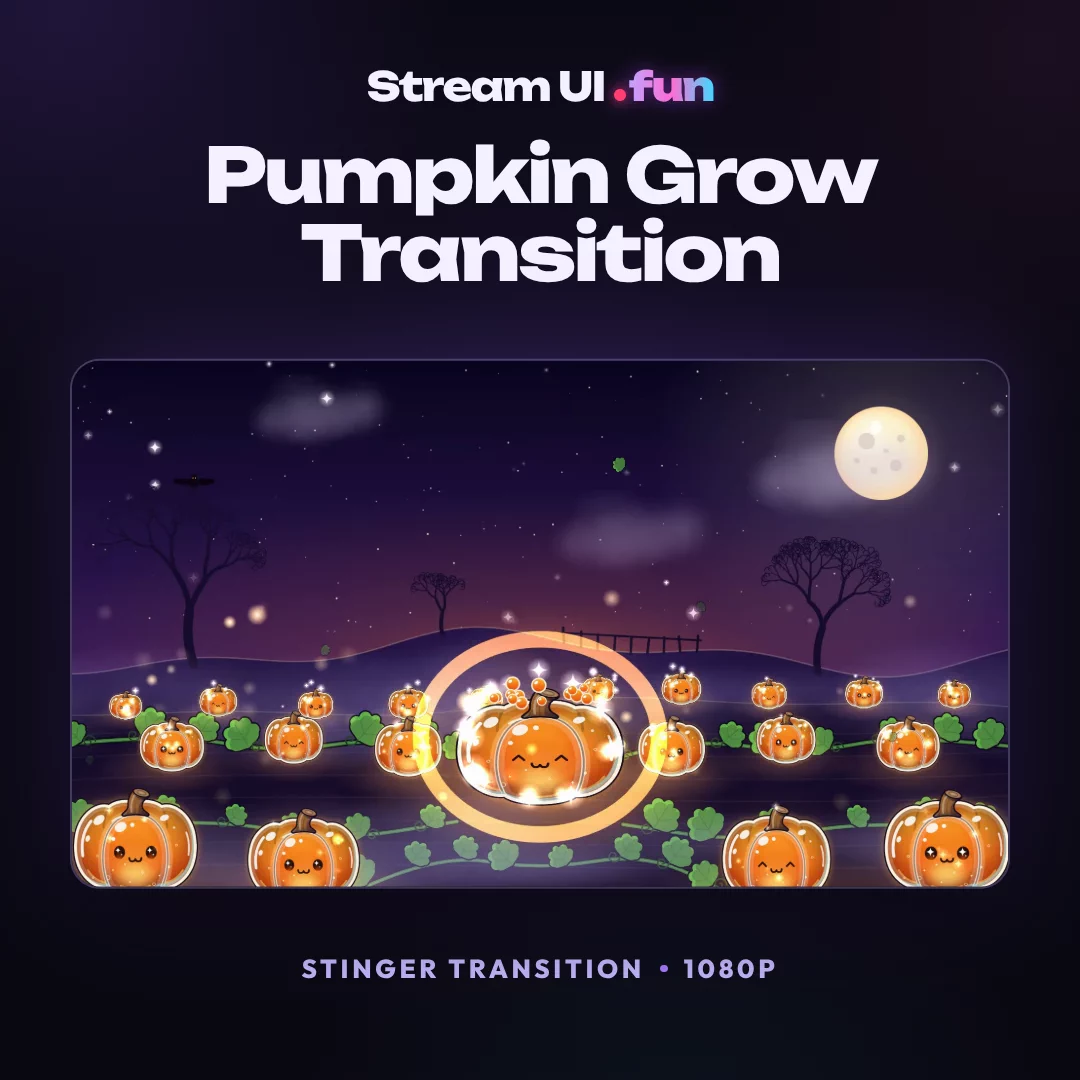
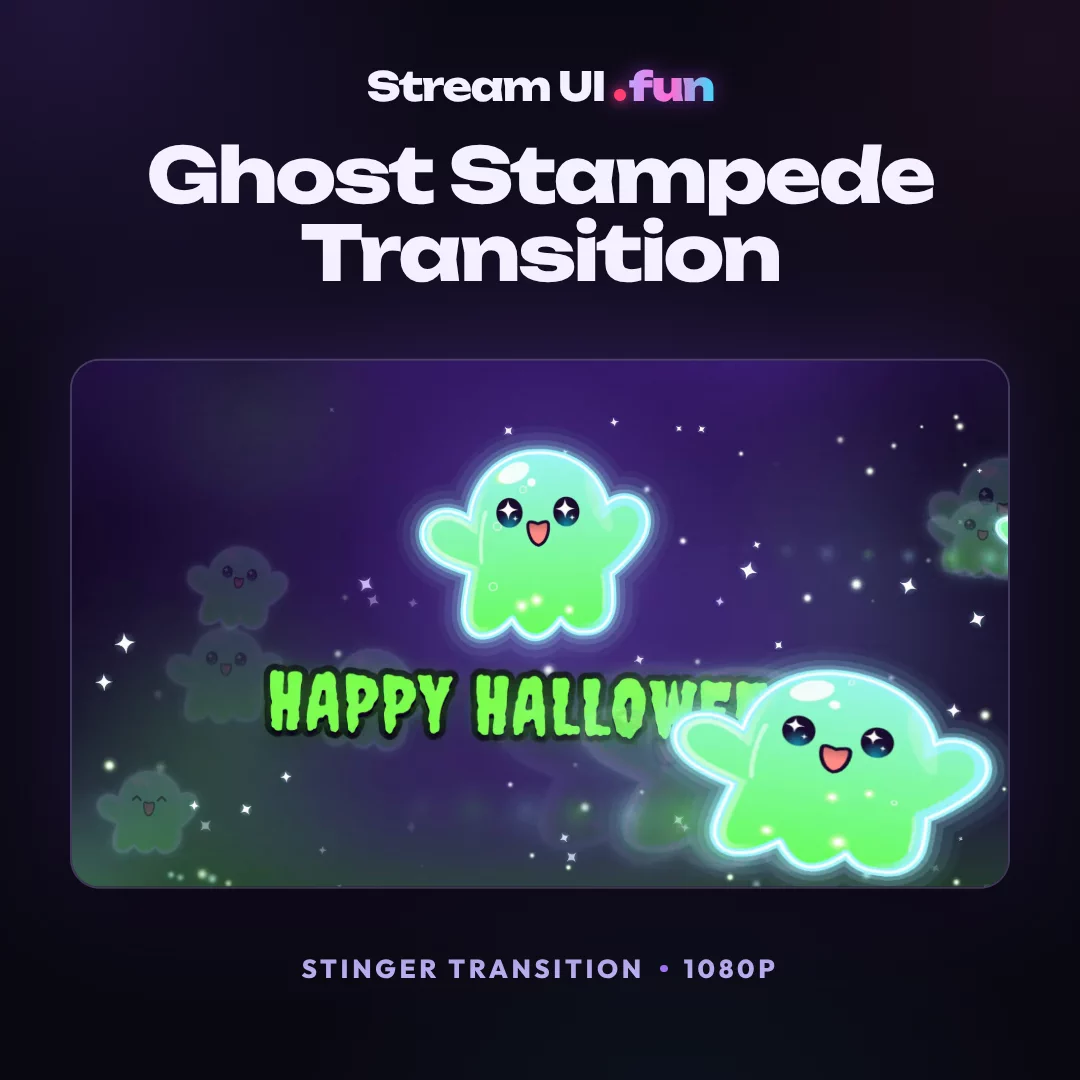
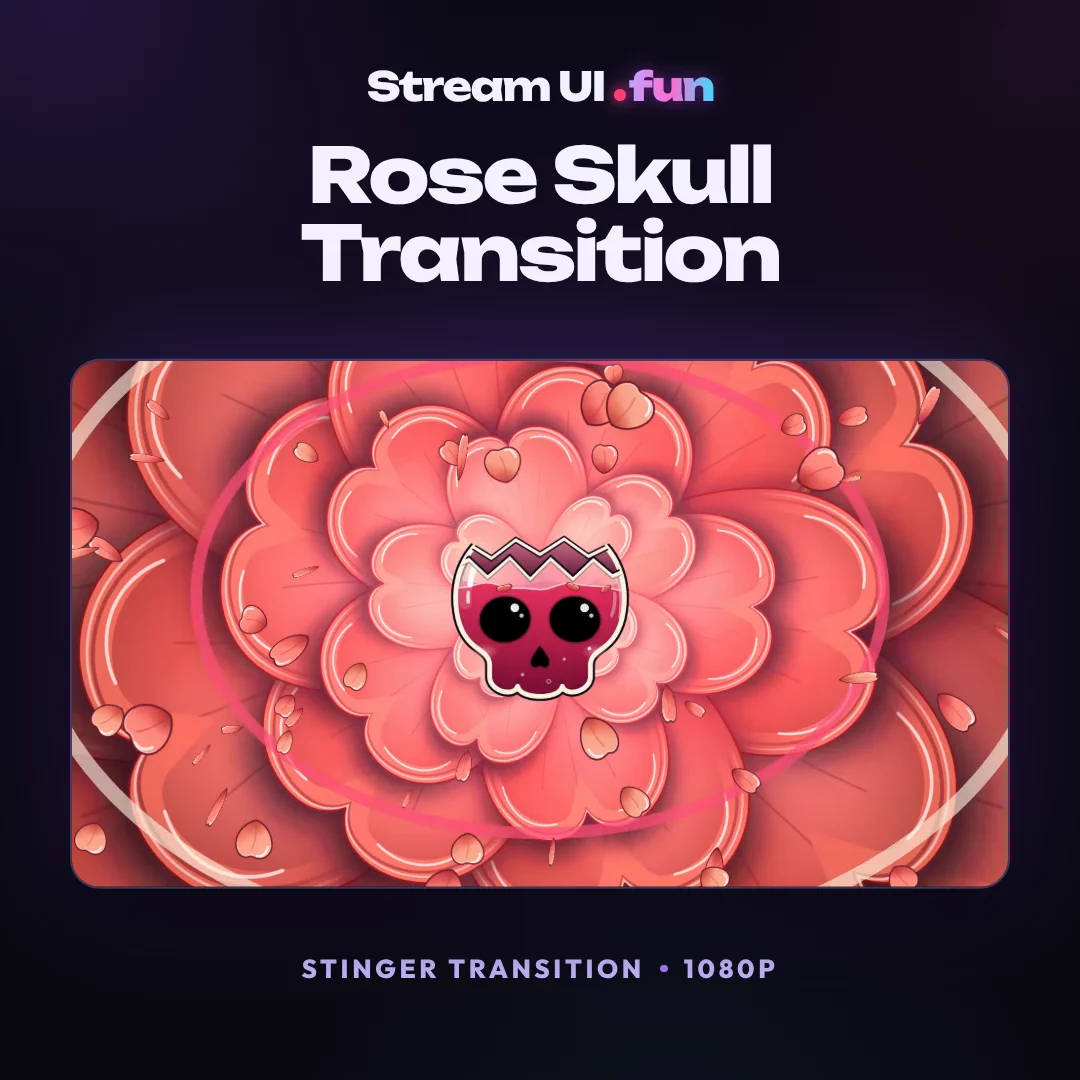
A stinger is the quickest way to make a stream feel produced. One short animation sweeps across the screen, the scene changes behind it, and your switch from Just Chatting to gameplay suddenly looks like a TV ident instead of a hard cut.
Setting one up takes about two minutes. Getting it to look clean comes down to one number, the transition point, and a couple of settings most guides skip. Here’s all of it, plus the fixes for every problem we’ve seen in the setup crew’s inbox.
What a Stinger Transition Is
A stinger is a short video, usually 1–2 seconds long, that plays on top of your stream while OBS switches scenes. It works in three beats:
- The animation sweeps in and covers the screen.
- At the exact moment the screen is hidden (the transition point), OBS swaps the old scene for the new one underneath.
- The animation clears and reveals the new scene.
Done right, viewers never see the cut. Done wrong, they see a flash of the old scene, a black box or an animation that stops halfway. Three things decide which one you get: the file has transparency, the transition point lands while the screen is fully covered, and the file’s frame rate suits your stream.
File Formats That Work
WebM With Alpha (Recommended)
A VP9 WebM with an alpha channel is the standard for streaming. It’s transparent, small (a 2-second 1080p stinger is usually under 15 MB) and plays smoothly in both OBS and Streamlabs Desktop.
MOV With Alpha
QuickTime files using ProRes 4444 are transparent too, but they’re many times larger and heavier to decode. They work in OBS, yet they can stutter on slower drives. Keep MOVs for video editing in Premiere, Resolve or CapCut.
Track Matte
A track matte file adds a black-and-white matte to the animation, either beside it, below it, or as a separate video. OBS reads the matte to decide where the old scene ends and the new one begins, so the swap follows the animation’s edge instead of happening on a single frame. The result is a cleaner reveal, especially for wipes that don’t cover the whole screen at once.
| Format | Transparent? | Size (2 s, 1080p) | Use it for |
|---|---|---|---|
| WebM (VP9 alpha) | Yes | Usually under 15 MB | OBS and Streamlabs |
| MOV (ProRes 4444) | Yes | Often 100 MB or more | Video editing |
| MP4 (H.264) | No | Small | Previews only |
Step-by-Step in OBS Studio
- Add the transition. Find the Scene Transitions dock (if it’s hidden, turn it on under Docks → Scene Transitions). Click +, choose Stinger, give it a name like “Warp” and click OK.
- Browse to the file. Next to Video File, click Browse and pick the
.webm. Keep stingers in a permanent folder, not Downloads, so the file never goes missing after a clean-up. - Set the transition point. Set Transition Point Type to Time (milliseconds) and enter the value from the product page or file name. For the Nebula Warp Stinger that’s
900. If you’d rather count frames, choose Frame and enter the frame number instead. - Track matte files only: tick Use a Track Matte. Pick the layout that matches your file (matte beside the animation, below it, or in a separate file) and watch the preview. If the scenes swap the wrong way round, use the invert option.
- Sort out the audio. Audio Monitoring decides who hears the whoosh: Monitor Off means only viewers hear it, Monitor and Output means you hear it too. Audio Fade Style controls how your scene audio blends: the default fades the old scene out by the transition point, while Crossfade blends both scenes across the whole stinger. There’s no volume slider here, so if the sound effect is too loud, use a quieter version of the file.
- Make it the default. Select your stinger in the Scene Transitions dropdown and it’s used for every scene switch. The Duration box disappears when a stinger is selected, because OBS uses the video’s own length. Duration only matters for transitions like Fade and Swipe.
- Override it per scene (optional). Right-click a scene in the Scenes dock and choose Transition Override. The override applies whenever you switch to that scene, which is perfect for a quick Cut into gameplay or a bigger stinger into your Starting Soon screen.
- Test it in Studio Mode. Click Studio Mode in the Controls dock, click a scene in the Scenes dock to load it into Preview (the left screen), then click Transition. Watch closely for flashes. The Preview Transition button in the stinger’s properties works too.
How to Find the Perfect Transition Point
The transition point is the moment the animation fully covers the screen. If the creator printed it on the product page or in the file name, use that number and skip this section. If not, measure it yourself:
- Open the stinger in a player or editor that steps frame by frame. In VLC, press E to move forward one frame; any video editor works too.
- Find the stretch of frames where none of the screen underneath is visible, and pick a frame in the middle of it. Aiming for the middle gives you a safety margin on both sides.
- Convert the frame to milliseconds: frame ÷ fps × 1000. Frame 54 of a 60 FPS file is 54 ÷ 60 × 1000 = 900 ms.
Here’s a cheat sheet, so you can skip the math:
| Frame | At 30 FPS | At 60 FPS |
|---|---|---|
| 15 | 500 ms | 250 ms |
| 20 | 667 ms | 333 ms |
| 25 | 833 ms | 417 ms |
| 30 | 1000 ms | 500 ms |
| 35 | 1167 ms | 583 ms |
| 40 | 1333 ms | 667 ms |
| 45 | 1500 ms | 750 ms |
| 50 | 1667 ms | 833 ms |
| 55 | 1833 ms | 917 ms |
| 60 | 2000 ms | 1000 ms |
If the file reports 29.97 or 59.94 FPS, the math barely changes. Round to the nearest millisecond and test.
In Streamlabs Desktop
Streamlabs uses the same stinger engine, so the numbers carry straight over:
- Click the transitions icon at the top of the Scenes panel to open Scene Transitions.
- Click Add Transition, give it a name and set the type to Stinger.
- Choose the
.webmas the video file and enter the same transition point in milliseconds. - Set it as your default transition, then use the Connections tab if you want specific scene pairs to use their own stinger.
Make It Feel Pro
A stinger that works is step one. A stinger that feels like part of your brand is what viewers remember.
- Match your overlay colours. Pick a stinger in the same palette as your scenes and webcam frame. When the colours line up, the transition reads as one show instead of three downloads.
- Use different stingers for different moments. Give “Starting Soon → Live” a bigger, louder stinger. Keep a short, quiet one for switching between gameplay and Just Chatting, and give your BRB screen its own.
- Alternate directions. If your stinger comes in left and right versions, use one direction going into a scene and the other coming back out. It makes switches feel intentional.
- Keep the whoosh under your voice. If you talk over the transition, viewers should still hear you. Pick the quietest version that still has punch.
- Don’t overdo it. Switching scenes every 30 seconds? Use a Cut or a very short stinger for those, and save the big one for the moments that matter.
Troubleshooting
Flash of the Old Scene (or the New One Pops In Early)
The transition point is off. If you see the old scene as the animation clears, the point is too late. If the new scene appears before the screen is covered, it’s too early. Re-measure, or nudge the value 50 ms at a time and test in Studio Mode.
Black Box Behind the Animation
The file has no transparency. That usually means an MP4, or a WebM exported without its alpha channel. Switch to the WebM with alpha. If your file is a track matte version, make sure Use a Track Matte is ticked, otherwise OBS plays the matte as part of the video.
Stutter or Dropped Frames
Move stingers to a fast local SSD (not a network drive or a cloud-synced folder), use the WebM rather than a heavy MOV, and match the stinger’s resolution to your canvas. A 4K stinger on a 1080p canvas does a lot of work for nothing. The Stats dock shows whether OBS is missing frames while the transition plays.
Audio Too Loud or Doubled
Use a quieter version of the file first. If you hear it twice, your monitoring device is probably also being captured as Desktop Audio: set the stinger’s Audio Monitoring to Monitor Off, or change the monitoring device in Settings → Audio → Advanced.
Stinger Cuts Off Early at 30 FPS
Check Settings → Video → Common FPS Values. If your stream runs at 30 FPS and the stinger is 60 FPS, it can drop frames or end a beat early. Load the 30 FPS copy so the file matches your output. Don’t panic, this one catches out everyone with a 60 FPS file.
Frequently Asked Questions
What's the best format for OBS stingers?
WebM with an alpha channel. It's small, transparent and plays smoothly in OBS and Streamlabs. Save MOV files for video editing.
Can I use an MP4 stinger?
Nope: no transparency. An MP4 covers your whole screen with a solid background, so viewers see a black box instead of your scene.
What's a track matte?
A black-and-white video, packed into the same file or shipped as a second one, that tells OBS where to show the old scene and where to show the new one. The swap follows the animation's edge instead of happening on a single frame.
Do stingers work in Streamlabs?
Yes! Streamlabs Desktop has a Stinger transition type with the same transition point setting, so the numbers from this guide carry straight over.