How to Match Your Overlay Colours to Your Brand (No Designer Needed)
One accent, one neutral, one pop colour. A simple system that makes every scene look like you meant it.
- OBS Studio
- Streamlabs
- StreamElements
TL;DR
- Pick three colours: one accent, one dark neutral and one pop colour for alerts and goals.
- Keep text at 4.5:1 contrast or better, and put it on a panel, never straight on gameplay.
- Paste the same hex codes into your overlay, chat widget, goal bar, alerts and panels.
- Test every scene over a bright game and a dark game before you go live.
Viewers decide how polished your stream is in the first few seconds, long before they read a panel. A matching palette is the cheapest way to win those seconds: it makes a webcam frame, a chat box and a goal bar look like one designed show instead of five downloads from five places.
You don’t need a designer for this. You need three colours, one contrast check and twenty minutes to paste hex codes into the right boxes. Here’s the whole system.
Why Matching Colours Matter
- Recognition. A raid, a clip on TikTok, a thumbnail in the sidebar: consistent colours tell people it’s you before they see your name.
- Focus. Fewer colours mean less visual noise, so eyes go to you and the gameplay instead of the frame.
- Trust. A stream that looks intentional feels like a stream worth following. Mismatched widgets look temporary.
The goal isn’t to make your overlay louder. It’s to make every piece agree with every other piece.
Start With One Accent Colour
Your accent is the colour people will remember. Pull it from something you already own: your logo, your avatar, your emotes or your Discord banner. If you have none of those yet, pick the colour that matches the mood of your content. Cozy streams suit warm pinks and ambers. Competitive streams suit cyans and limes.
To get the exact code, open your logo in Photopea, GIMP or Photoshop and click it with the eyedropper. In OBS, any colour picker has a Pick Screen Color button that samples anything on your screen. You’re looking for a six-character hex code like #8A55FB.
Build a Three-Colour Palette
Designers often split a palette roughly 60 / 30 / 10. On stream, that looks like this:
| Role | Share | Where it goes | Neon Nebula example |
|---|---|---|---|
| Neutral | 60% | Panels, frames, chat backgrounds | #0A0812 |
| Accent | 30% | Borders, headers, usernames, goal bar | #8A55FB |
| Pop | 10% | Alerts, goal celebrations, “new” moments | #FF6AD5 |
Add one text colour on top: an off-white like #F4F1FF reads cleaner than pure #FFFFFF, which glares on dark scenes. That’s it. Four codes cover your entire stream.
Keep the pop colour rare. If everything is pink, nothing is exciting. Save it for the moments you want chat to notice: a new follower, a filled goal, a raid.
Make It Readable on Any Game
Your overlay sits on top of footage you don’t control: snowy maps, neon cities, white menus. Three rules keep text readable on all of it:
- Check the contrast. Aim for at least 4.5:1 between small text and whatever sits behind it, and 3:1 for big headings. Any free online contrast checker will tell you the ratio for two hex codes.
- Put text on a panel. Text straight on gameplay will always lose somewhere. A dark panel at 60–80% opacity, or a frosted glass panel, keeps it readable on every frame.
- Avoid thin, saturated red text. Streaming video stores colour at a lower resolution than brightness, so fine coloured detail smears after compression. Contrast in brightness survives. Contrast in colour alone doesn’t.
Size matters too. On a 1920 × 1080 canvas, keep chat text around 22–28 px so it’s still readable when viewers watch on a phone.
Carry It Through Every Widget
Once you have your codes, paste them everywhere. Work through your stream in this order:
- Overlay and webcam frame. Recolour the frame and panels to your neutral and accent. Most packs include a layered PSD for static parts.
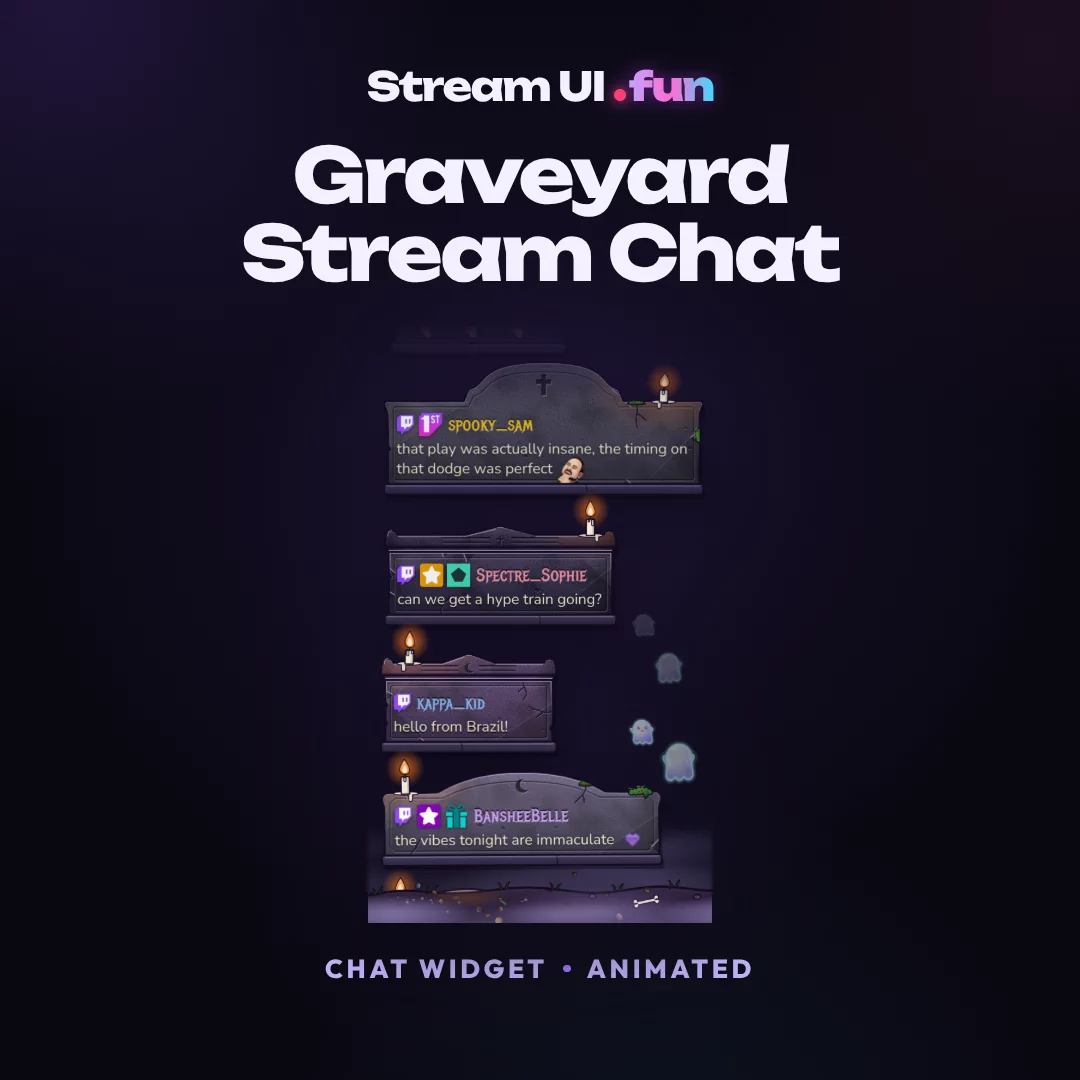
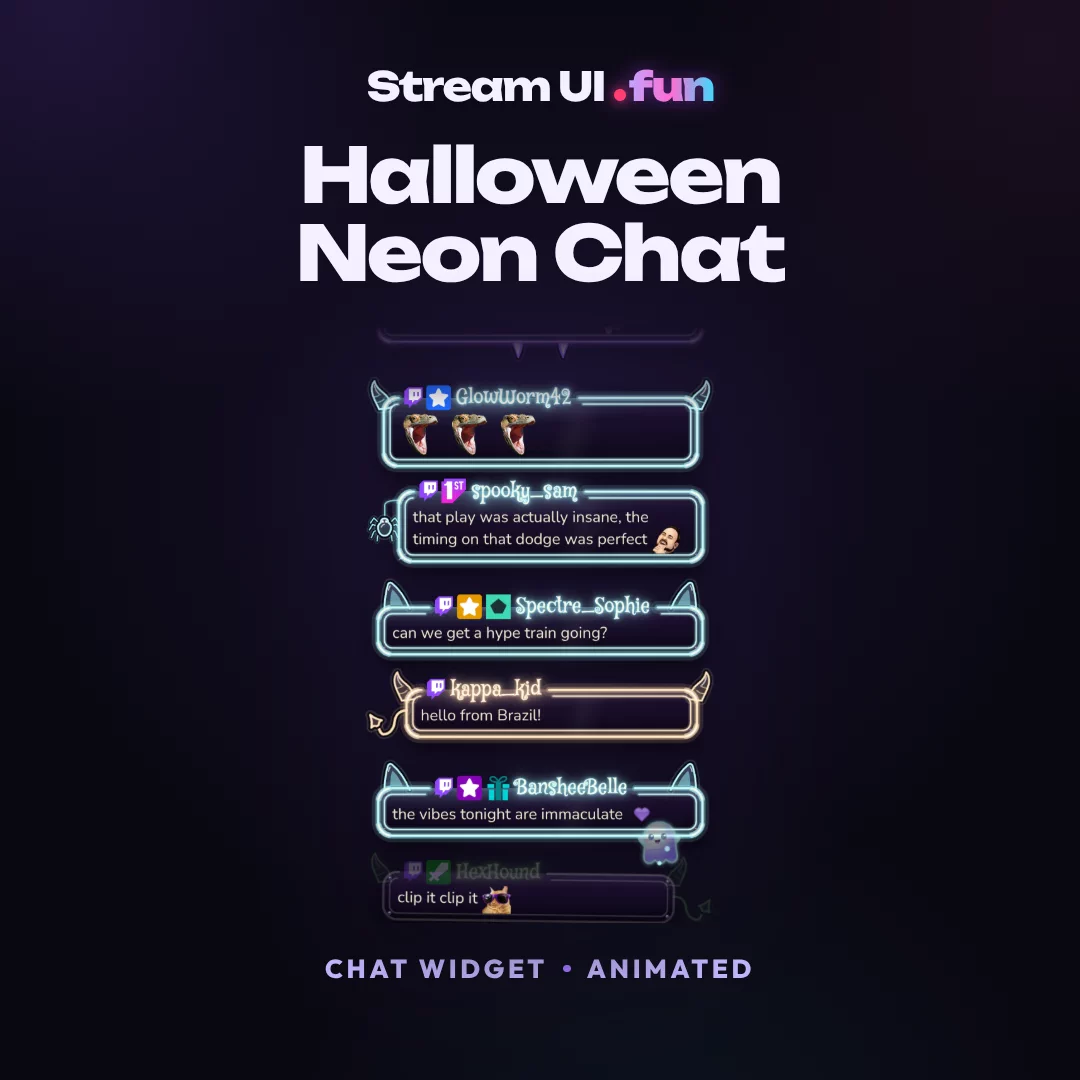
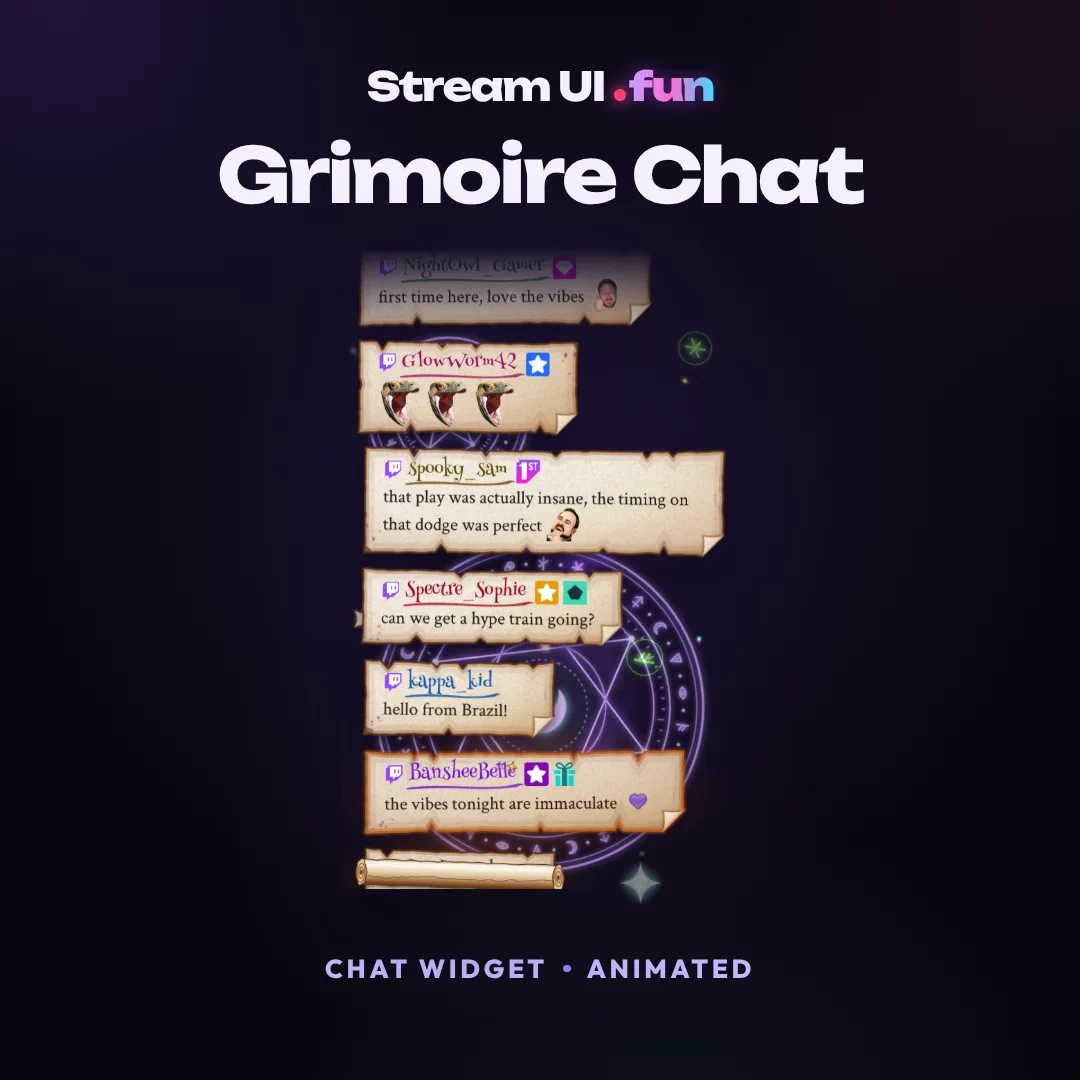
- Chat widget. In the StreamElements or Streamlabs chat box settings, set the background to your neutral, usernames to your accent and message text to your off-white.
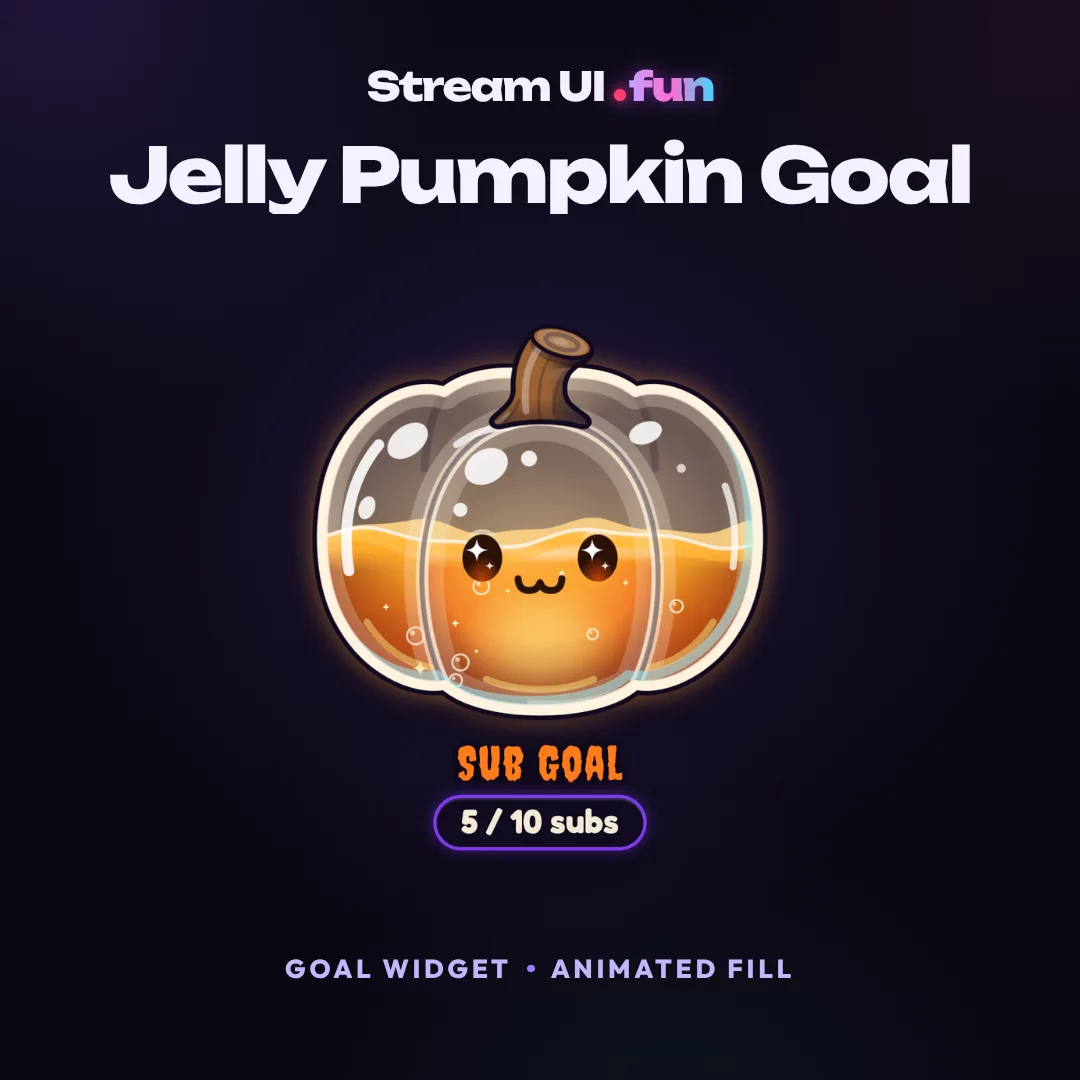
- Goal bar. Fill it with your accent and save the pop colour for the moment it completes.
- Alerts. Use your pop colour for the username highlight and your off-white for the message.
- Panels and offline screen. Twitch panels are 320 px wide. Use your neutral as the background so they match the stream above them.
- Discord. Set your role colours and server banner from the same palette, so your community space looks like your stream.
Palette Ideas to Steal
Not sure where to start? Each of these is a neutral, an accent and a pop colour that work together:
| Palette | Neutral | Accent | Pop | Feels |
|---|---|---|---|---|
| Neon Nebula | #0A0812 |
#8A55FB |
#FF6AD5 |
Cosmic, cozy hype |
| Ice Arcade | #0B1020 |
#3FD9FF |
#C8FF3D |
Clean, competitive |
| Sunset Lo-fi | #160D12 |
#FFB547 |
#FF6AD5 |
Warm, chill |
| Mono Pro | #0E0E12 |
#C8C0E4 |
#3FD9FF |
Minimal, focused |
We checked them for you: every accent and pop colour above passes 4.5:1 on its own neutral, and off-white #F4F1FF text passes 17:1 on all four. Swapping in your own colours? Run them through a contrast checker first.
Common Mistakes
Too Many Colours
Every widget in its default colour gives you five accents fighting for attention. Stick to your three and recolour the rest.
Matching the Game Instead of Your Brand
A green overlay for one game and a red one for the next means viewers never learn your look. Keep your palette and adjust only the brightness if a game needs it.
Pure White Panels
White panels glare on dark scenes and blow out on bright ones. Use your neutral for panels and save white for small text.
Neon on Neon
Bright text on a bright accent background vibrates and blurs on stream. Put bright text on your dark neutral, and dark text on bright buttons.
Frequently Asked Questions
What colours look best on stream?
A dark neutral for panels, one bright accent and one pop colour. Purples, cyans, pinks and limes stand out on most games. The one to avoid is thin red text: stream compression smears it.
How do I find my logo's hex code?
Open your logo in Photopea, GIMP or Photoshop and click it with the eyedropper, or use Pick Screen Color in any OBS colour picker. Copy the six-character code that starts with #.
Should my overlay match the game I'm playing?
Match your brand, not the game. The game changes from stream to stream, and your colours are how returning viewers recognise you. Just check your text stays readable over the game's brightest scenes.
Can I change the colours of a pre-made overlay?
Yes! Widgets like the Nebula Glass Multichat and Nebula XP Goal Bar take any custom hex in their settings. For animated scenes, edit the included PSD or shift the hue with OBS's Color Correction filter.