How to Add a Chat Widget to OBS (Twitch, YouTube & Kick)
Three ways to put chat on stream, from the free pop-out to a fully styled widget, plus fixes for every common problem.
- OBS Studio
- Streamlabs
- StreamElements
TL;DR
- Add a Browser source in OBS and paste your chat widget URL.
- Set it to 400 × 600 for a side chat, or 1920 × 1080 for a full-canvas widget.
- Make the background transparent with one line of custom CSS.
- Want it to look pro? Use a styled widget (Step 3).
Putting chat on stream is one of those five-minute upgrades that changes how a stream feels. Viewers see their messages land, lurkers notice there are real people here, and anyone watching the VOD can finally follow the jokes.
This guide covers three ways to do it, each a step up from the last: the free pop-out chat, a StreamElements or Streamlabs widget, and a custom-styled widget. Then we walk through OBS Studio and Streamlabs Desktop click by click. If something goes sideways, don’t panic: OBS does this to everyone, and every common fix is in the troubleshooting section at the end.
Why On-Screen Chat Makes Viewers Chat More
Chat on screen isn’t just decoration. It changes how people behave in your stream:
- Recognition. Seeing your own name on someone’s stream is a tiny reward, and people who get rewarded keep typing.
- Proof the room is alive. A new viewer who sees messages moving is far more likely to say hi than one staring at an empty corner.
- Context for clips and VODs. When you react to a message, everyone who isn’t in chat (VOD viewers, clip watchers, YouTube highlights) can see what you’re answering.
- Equal footing when multistreaming. A combined feed makes Kick and YouTube viewers feel as present as your Twitch regulars.
There’s only one rule: chat should be readable at a glance and never cover the action. Everything below is about getting both.
Option A: Platform Pop-Out Chat (Free, Basic)
Every major platform has a pop-out chat page, and OBS can load any web page as a source.
- Twitch: open your channel, click the gear icon under chat (Chat Settings) and choose Popout Chat. Copy the address from the new window. It looks like
https://www.twitch.tv/popout/yourname/chat?popout=. - YouTube: open your live stream’s watch page, click the three-dot menu at the top of the chat and pick Pop-out chat. The link contains that broadcast’s video ID, so you may need a fresh link for each new stream.
- Kick: the pop-out chat lives at
https://kick.com/popout/yourname/chat.
It works, but you’re loading the whole chat page: the header, the “Send a message” bar and a solid background. Custom CSS can hide some of it, but platforms change their page code often, so those tweaks break without warning. Third-party emotes (7TV, BTTV and FFZ) won’t appear either, because browser extensions don’t run inside OBS.
Good for: testing a layout, or a quick “I just need chat up tonight” fix.
Option B: StreamElements or Streamlabs Chat Widget
Both services give you a free chat widget you can style a little and load from a private link.
StreamElements: sign in at streamelements.com, open your overlays (Streaming tools → My overlays) and create a new overlay at 1920 × 1080. Click + to add a widget, choose the chat box, then set the font, size and theme. Save, and copy the overlay URL with the link icon.
Streamlabs: sign in at streamlabs.com, open All Widgets → Chat Box, pick a theme, font size and how long messages stay on screen, then copy the widget URL from the top of the page.
Good for: free, decent styling, and everything managed from one dashboard. The catch: the themes look like everyone else’s, and anything beyond the presets means writing CSS by hand.
Option C: A Custom-Styled Chat Widget
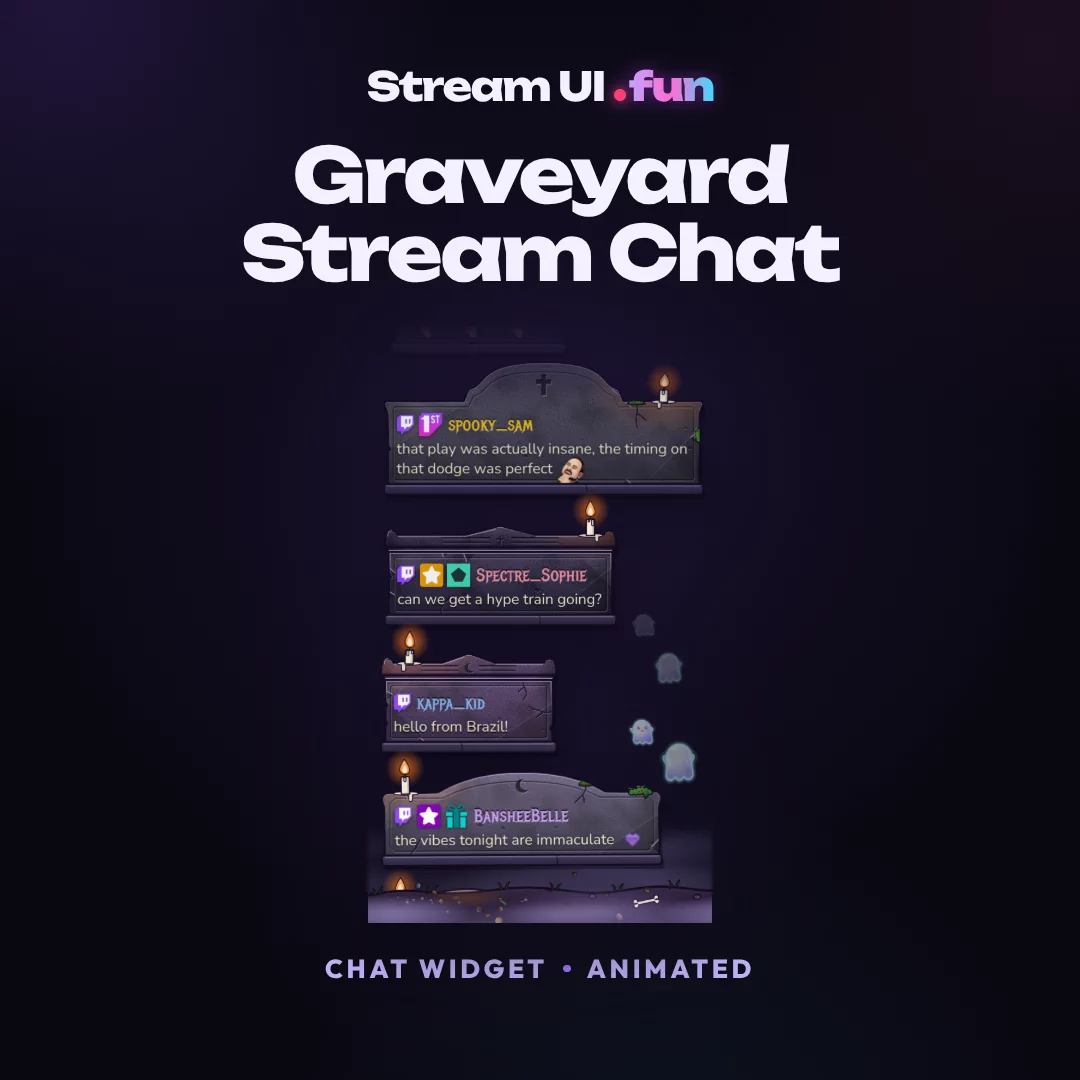
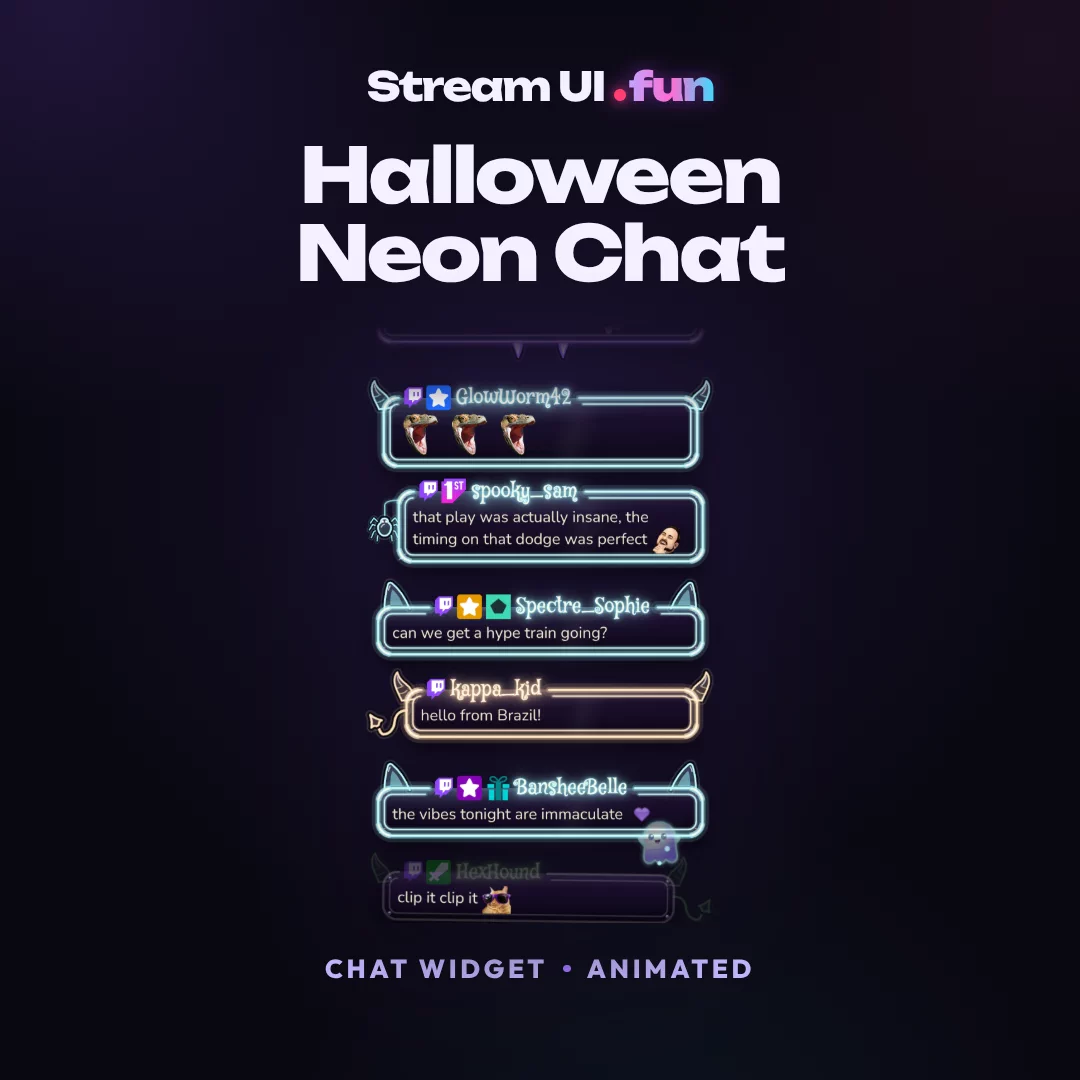
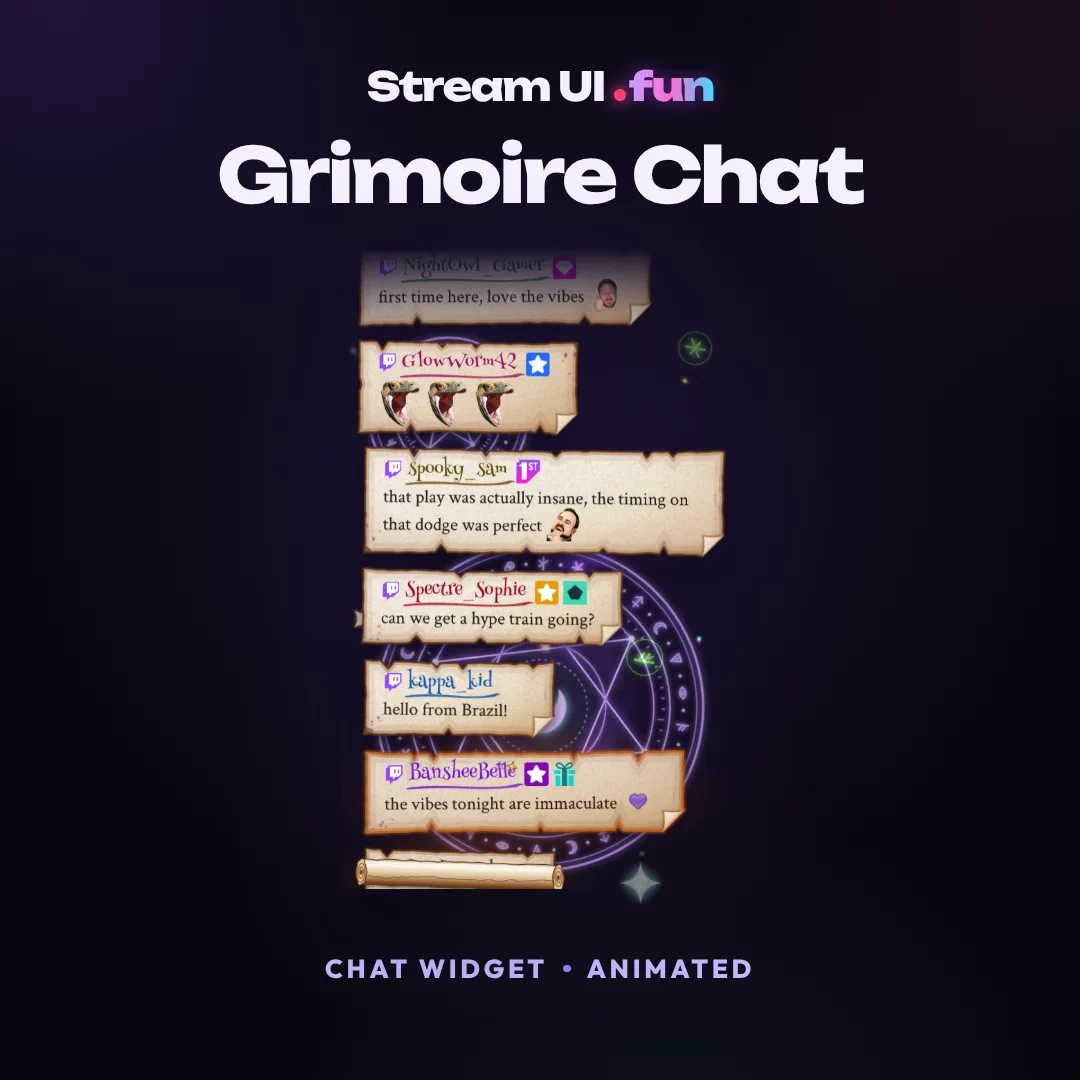
Step three on the ladder is a widget somebody already designed, animated and tested, so you get the look without the CSS. A good one gives you animated messages, platform badges, crisp third-party emotes and a bot filter out of the box.
Step-by-Step in OBS Studio
Got your URL? Here’s the whole thing, start to finish. It works the same on Windows, macOS and Linux.
-
Add a Browser source. In the Sources dock, click + and choose Browser. Pick Create new, name it “Chat” and click OK.
-
Paste the URL. In the properties window, replace the default address in the URL field with your chat link.
-
Set the width and height. Use 400 × 600 for a side chat, or 1920 × 1080 if your widget is a full-canvas overlay (StreamElements overlays usually are). Always use the size the widget was designed for. Stretching it later is what makes text blurry.
-
Make the background transparent. Check that this line is in the Custom CSS box. OBS adds it by default, but it’s easy to delete by accident:
body { background-color: rgba(0,0,0,0); margin: 0; overflow: hidden; } -
Tick “Refresh browser when scene becomes active”. It’s optional, but it prevents most “chat froze after I switched scenes” moments. Leave Shutdown source when not visible unticked so chat keeps collecting messages while it’s off screen. Click OK.
-
Position and crop. Drag the red box to place chat. Hold Alt (Option on a Mac) while dragging an edge to crop it. For exact numbers, right-click the source and choose Transform → Edit Transform.
-
Send a test message. Type something in your own chat, or use the widget’s test button. If it shows up, you’re done. If it doesn’t, jump to troubleshooting.
In Streamlabs Desktop
Streamlabs Desktop is built on the same engine as OBS, so every fix in this guide works there too.
- Built-in chat box: in the Sources panel, click +, open the Widgets tab and choose Chat Box. It connects to your Streamlabs account automatically, and you can style it from the source’s settings without leaving the app.
- Any other widget (StreamElements, ours or anyone else’s): click +, choose Browser Source, paste the URL, set the width and height, and keep the transparent line in Custom CSS.
Resize it the same way: set the size in the source’s properties instead of dragging the corners.
Kick and Multi-Platform Chat
If you stream only to Kick, the pop-out link from Option A works, and so does any widget that reads Kick chat directly. Kick support inside third-party dashboards has been changing fast, so check the platform list before you build a layout around one.
Multistreaming is where on-screen chat gets messy. Three separate chat boxes for Twitch, YouTube and Kick eat a third of your screen, and viewers on one platform can’t see the others. You have two clean fixes:
- An aggregator such as Restream Chat or Social Stream Ninja merges every chat into one page you load as a single Browser source.
- A multichat widget reads every platform itself. Nebula Glass Multichat shows Twitch, YouTube, Kick and TikTok LIVE (through TikFinity) in one feed, with a tiny platform badge on each message so you always know who’s talking where.
Streaming vertical too? If you run a second 9:16 canvas (with the Aitum Vertical plugin or Twitch’s Dual Format), add a separate Browser source there with a narrow, vertical layout. A wide chat box squeezed onto a phone screen helps no one.
Customize It: Fonts, Colours, Badges, Hiding Bots
A widget that’s technically working isn’t the same as one people read. These settings exist in almost every chat widget, free or paid.
Fonts and Size
Most viewers watch on a phone. On a 1920 × 1080 canvas, aim for 22–28 px text in a bold, rounded sans-serif. Skip thin weights and script fonts. If you set a font in Custom CSS, it must be installed on your PC or loaded by the widget itself, otherwise OBS quietly falls back to a default.
Colours and Contrast
Put messages on a dark, semi-transparent panel or give the text a soft shadow, so chat stays readable over bright gameplay. Pick one accent colour from your overlay and use it for usernames or message borders. Matching beats rainbow.
Badges
Keep sub, mod and VIP badges visible. They help regulars recognize each other, and they quietly show new viewers what subscribing gets them. When you multistream, a platform badge on each message is a must.
Hiding Bots and Commands
Add your bots to the widget’s ignore list: Nightbot, StreamElements, Streamlabs, Moobot, Fossabot and any custom ones. If there’s a “hide commands” toggle, turn it on so messages starting with ! stay off screen.
Message Lifetime
Fade messages out after 30–60 seconds and show about 6–10 at a time. Old messages sitting on screen during a quiet moment make the stream look emptier than it is.
Troubleshooting
Chat Isn’t Showing
- Open the URL in your normal browser first. If it’s blank there too, the link is wrong or expired.
- Check the eye icon next to the source, then drag “Chat” to the top of the Sources list. Sources at the top render in front of everything else.
- Most widgets start empty and only show messages sent after they load, so send a fresh test message.
- Still nothing? Open the source’s properties and click Refresh cache of current page.
White or Black Background
Don’t panic, OBS does this to everyone. Either the Custom CSS line got deleted (paste it back from Step 4), or the page paints its own background, which pop-out chats do. Crop the pop-out, or switch to a widget built for overlays.
Blurry Text
The source has been stretched. Right-click it, choose Transform → Reset Transform, and set the size in the source’s properties instead. If your canvas is 1920 × 1080 but you stream at a lower resolution, set Settings → Video → Downscale Filter to Lanczos for sharper text.
Missing Emotes
7TV, BTTV and FFZ emotes only appear when the widget supports them, so look for an emote toggle in its settings. Extensions you use in Chrome or Firefox don’t work inside OBS.
Chat Freezes After a Scene Switch
Tick Refresh browser when scene becomes active and untick Shutdown source when not visible. If it freezes in the middle of a stream, click Refresh cache of current page. Still flaky? Toggle Enable Browser Source Hardware Acceleration (Settings → Advanced → Sources) and restart OBS.
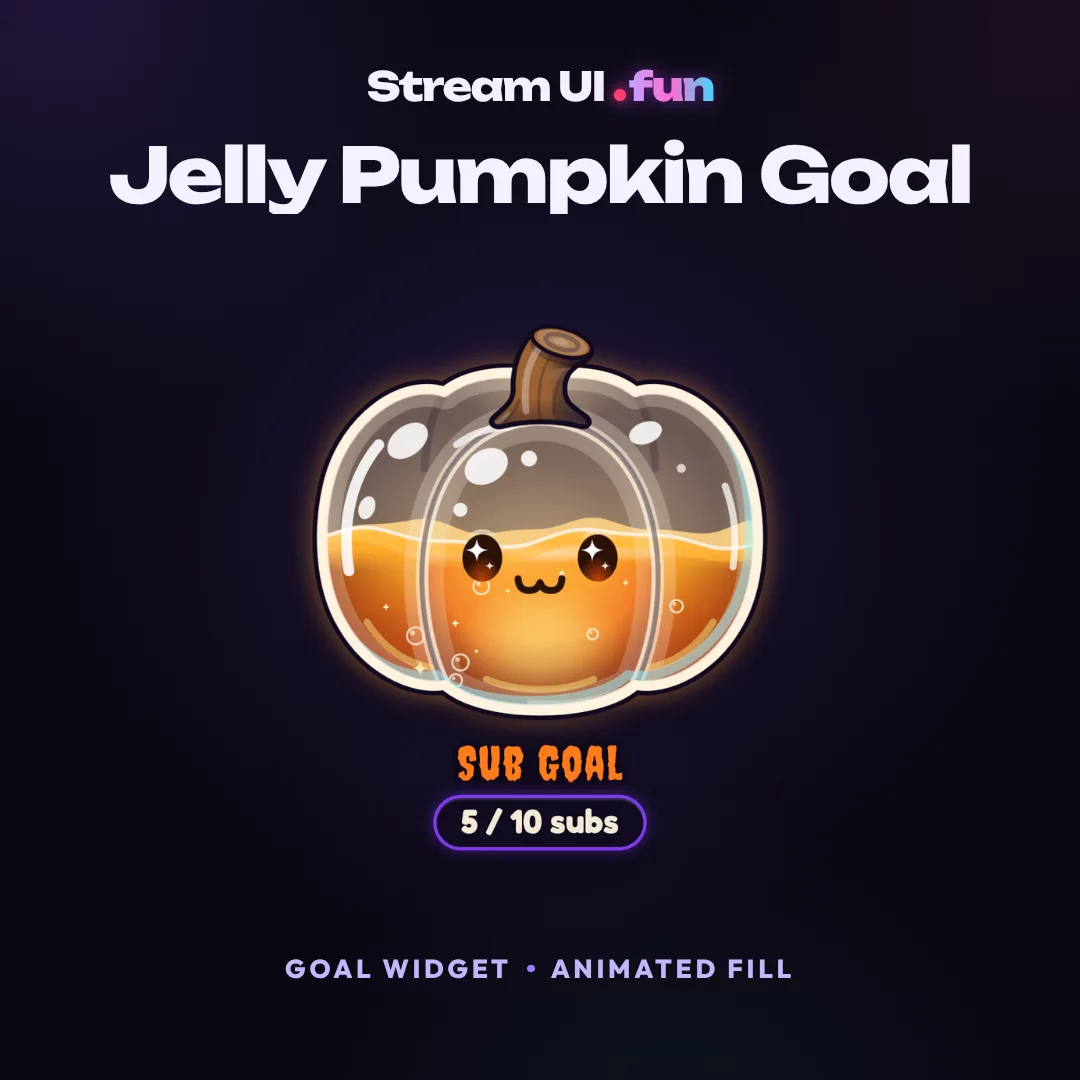
That’s the whole job. Once chat is up, a goal bar is the next easy win, and it works the exact same way.
Frequently Asked Questions
Does a chat overlay slow down OBS?
Nope. A chat widget is a lightweight browser source. Leave browser source hardware acceleration on (Settings → Advanced → Sources) and you won't notice it.
Can I show chat only in some scenes?
Yes! Add the browser source only to the scenes where you want chat, or copy it with Paste (Reference) so every copy shares the same settings.
How do I make chat transparent?
Paste body { background-color: rgba(0,0,0,0); margin: 0; overflow: hidden; } into the Browser source's Custom CSS box. If the background is still solid, the page itself paints one: switch to a chat widget.
Does it work in TikTok LIVE Studio?
Yes, as long as your widget runs as a link source. TikTok chat itself comes in through a connector like TikFinity.